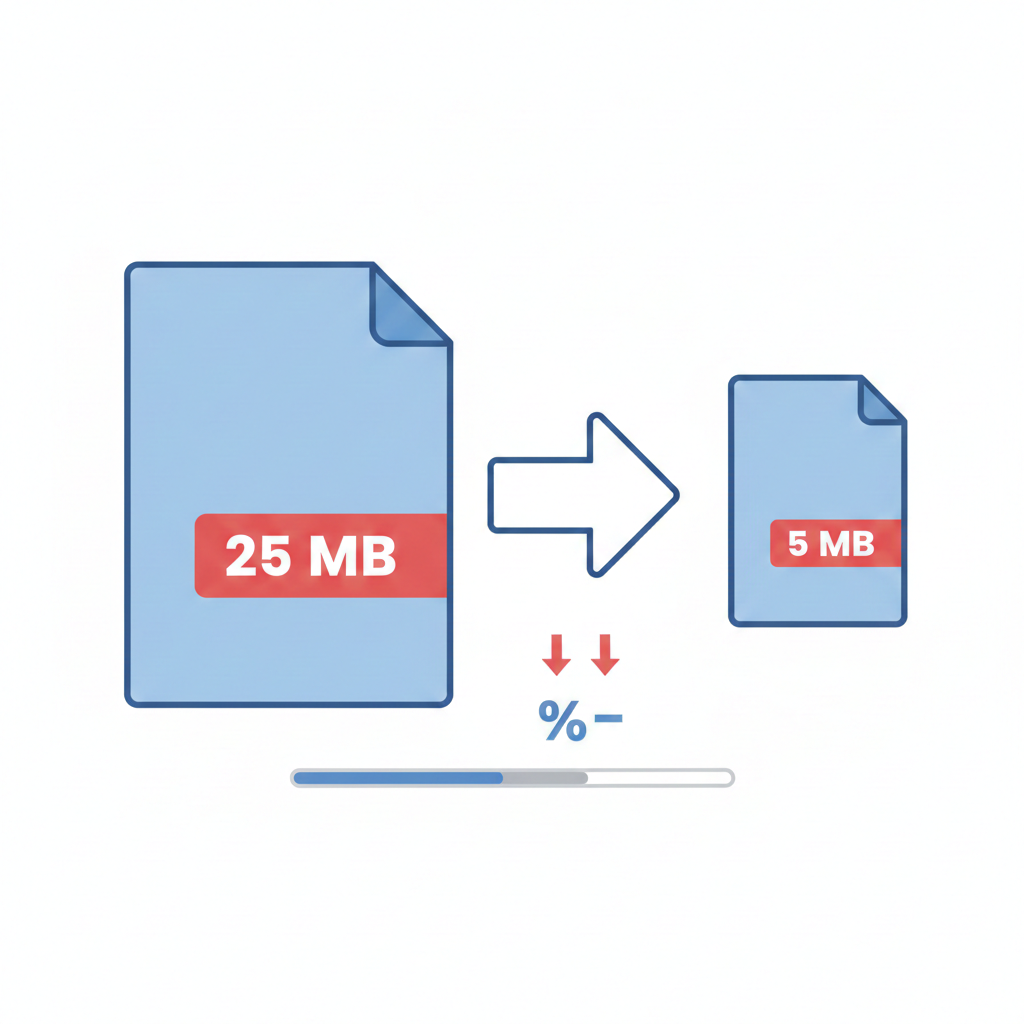
Learn how to compress a PDF without losing quality. This guide explains how to reduce file size for email, WhatsApp, and uploads while keeping text sharp and images clear.
A large PDF can create problems you don’t expect.
It won’t upload to a job portal.
It exceeds email attachment limits.
It takes too long to send on WhatsApp.
Cloud storage fills up faster than it should.
So you compress it — and suddenly the document looks blurry.
Text isn’t sharp. Images look washed out. Logos lose clarity.
Here’s the truth: compression itself isn’t the problem. Poor compression is.
When done correctly, you can reduce a PDF’s file size significantly without any visible loss in quality. The key is understanding what’s inside your file and choosing the right optimization method.
Let’s break it down properly.
Why Some PDF Files Are So Large
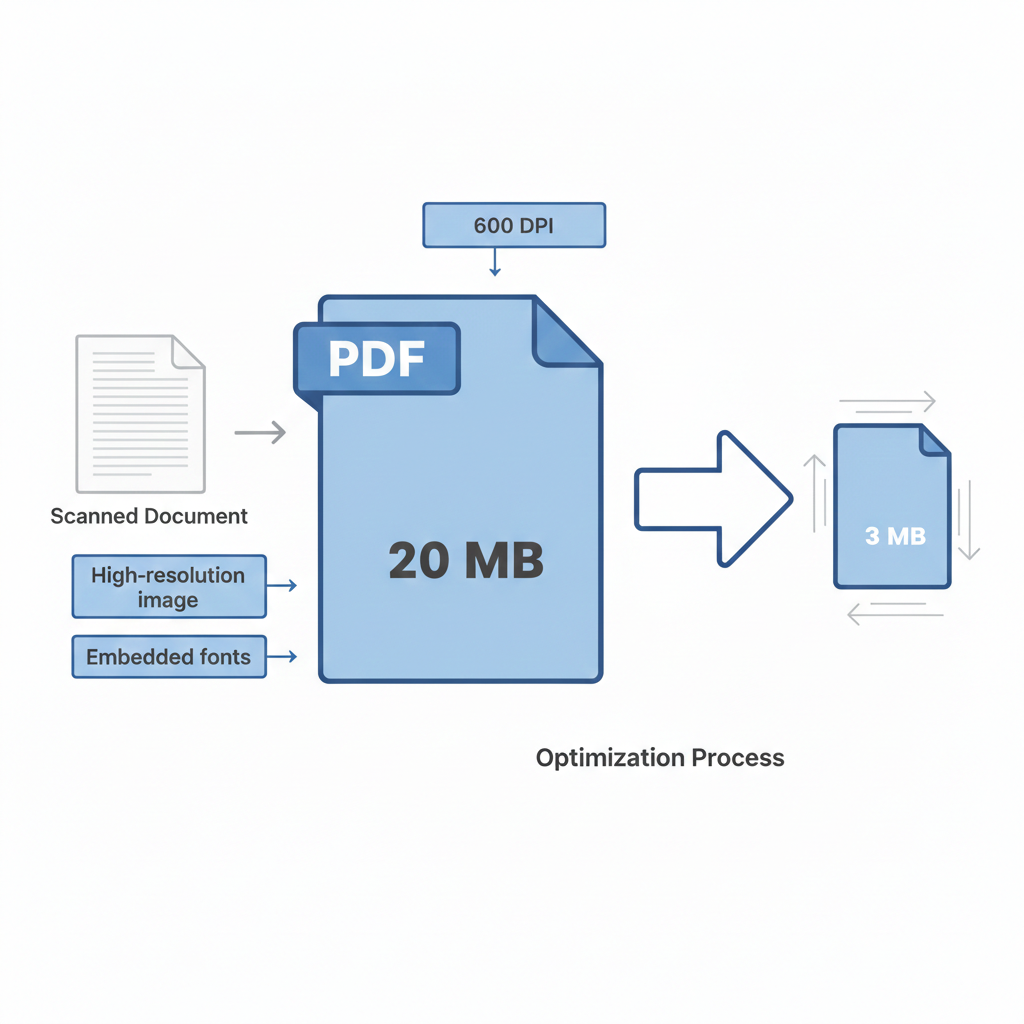
Not all PDFs are built the same way.
Two files can both be “10 pages,” yet one is 500 KB and the other is 25 MB.
That difference usually comes from what’s inside the document.
1. High-Resolution Images
If your PDF contains images scanned at 300–600 DPI, each page may actually be a full-resolution image. This dramatically increases file size.
Scanners often default to print-quality resolution — which is unnecessary for digital sharing.
2. Scanned Documents
A scanned document isn’t text. It’s an image of text.
That means:
- Every page is stored like a photograph.
- File size grows quickly.
- Compression becomes image-based.
3. Embedded Fonts
PDFs embed fonts to ensure formatting consistency. Some files embed entire font libraries — even if only a few characters are used.
4. Uncompressed Graphics & Vector Data
Design files, presentations, and exported reports may contain:
- High-detail charts
- Transparent layers
- Vector artwork
- Hidden objects
All of this adds weight.
5. Metadata & Hidden Data
PDFs often store:
- Author information
- Editing history
- Comments
- Unused elements
Optimization removes unnecessary data without affecting appearance.
What “Without Losing Quality” Actually Means
Let’s clarify something important.
Compression always reduces data.
But it doesn’t have to reduce visible quality.
There are two types of quality:
- Technical quality (data size, DPI, bit depth)
- Perceived quality (how it looks to the human eye)
Smart compression reduces technical excess while preserving perceived clarity.
For example:
- Reducing image resolution from 600 DPI to 200 DPI dramatically reduces size.
- But on screen, you won’t notice the difference.
That’s the balance we aim for.
The Difference Between Compression and Optimization
Many people use these terms interchangeably, but they’re not identical.
Compression
Reduces file size by lowering image resolution or increasing compression ratios.
Optimization
Cleans unnecessary elements such as:
- Unused fonts
- Metadata
- Duplicate objects
- Invisible layers
The best tools combine both.
Step-by-Step: How to Compress a PDF Without Losing Quality
Here’s the practical approach.
Step 1: Identify the Type of Document
Ask yourself:
- Is this mostly text?
- Does it contain photos?
- Is it scanned?
- Does it need to be printed later?
If it’s text-heavy, you can compress more aggressively.
If it contains high-detail graphics, use balanced settings.
Step 2: Choose Balanced Compression
Using a reliable tool like AstraPDF’s compress PDF tool, select a recommended or medium compression level first.
Avoid maximum compression unless your file must meet a strict size limit (like 1 MB).
Step 3: Reduce DPI Intelligently
For digital use:
- 300 DPI → High-quality printing
- 150–200 DPI → Perfect for screens
- 72 DPI → Web preview only
Most online sharing does not require 300 DPI.
Reducing to 150–200 DPI can cut file size by more than half while maintaining clarity.
Step 4: Remove Redundant Data
Good compression tools automatically:
- Remove embedded thumbnails
- Strip metadata
- Eliminate unused objects
- Compress images without distorting text
These invisible optimizations reduce size safely.
Step 5: Always Review the Result
After compression:
- Zoom in to 200%
- Check small fonts
- Inspect logos
- Review signatures
- Look at charts and fine details
If it looks good when zoomed, it’s safe to share.
Best Compression Settings for Real-World Scenarios
📧 Email Attachments
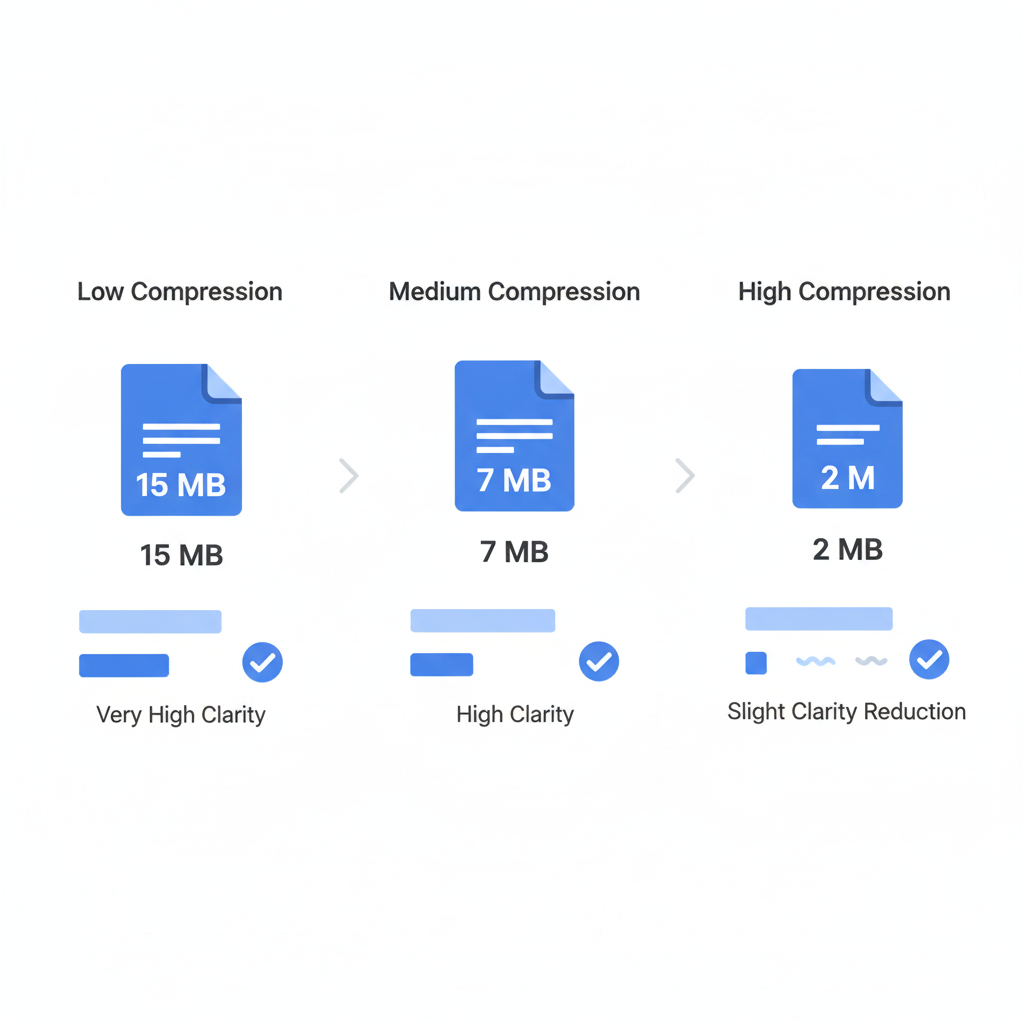
Most providers allow 20–25 MB, but keeping files under 10 MB is safer.
Recommended:
- Medium compression
- 150–200 DPI
- Avoid aggressive image reduction
📱 WhatsApp & Messaging Apps
Even though limits may allow larger files, smaller files send faster and download instantly.
For resumes or reports:
- Target under 5 MB
- Keep text sharp
- Ensure readability on small screens
🏢 Government or Job Portals
These often restrict uploads to:
- 1 MB
- 2 MB
- 5 MB
If required:
- Lower DPI moderately
- Avoid repeated compression
- Test readability before submitting
🖨 Printing Later
If you plan to print:
- Don’t reduce below 200 DPI
- Avoid heavy compression
- Preserve image clarity
Compression for print should be lighter.
Why PDFs Sometimes Become Blurry After Compression
Here are the most common mistakes:
1. Repeated Compression
Each time you compress a file again, quality drops further. Always compress from the original version.
2. Excessive Downscaling
Reducing images to extremely low resolution makes them pixelated.
3. Using Maximum Compression Mode
Maximum modes prioritize size over clarity.
Use only when absolutely necessary.
4. Compressing Already Optimized Files
Some PDFs are already optimized. Trying to compress them further may degrade quality without meaningful size reduction.
How Much Can You Reduce a PDF?
It depends on content.
- Text-based PDF → 20–40% reduction
- Image-heavy PDF → 50–80% reduction
- Scanned document → 40–70% reduction
There’s no fixed percentage. The structure of the file determines the outcome.
Is Online PDF Compression Safe?
Security is a valid concern.
When using an online tool, check:
- Secure HTTPS encryption
- Automatic file deletion after processing
- No manual access to files
- Clear privacy policy
Avoid uploading sensitive legal or financial documents to unknown services.
When You Should NOT Compress a PDF
There are cases where compression is not recommended:
- Final print-ready brochures
- High-resolution design proofs
- Legal evidence documents
- Archival storage files
In those cases, preserving original quality matters more than reducing size.
Extra Tip: Compress Before Merging
If you’re combining multiple files, compress them individually first.
Then merge them using a merge PDF tool.
This prevents creating a single large, heavy file.
Final Thoughts
Compressing a PDF without losing quality isn’t about making the smallest file possible.
It’s about making a smarter file.
A properly compressed PDF should:
- Open quickly
- Upload easily
- Remain sharp
- Look professional
- Preserve readability
When you understand what’s inside your document and use balanced compression settings, you’ll rarely experience visible quality loss.